Import
Import tab
The tab is designed to provide a user with the possibility to import rates to JeraSoft Billing by uploading a .csv or .xls file. The whole process can be divided into several steps discussed below. You can access the rates import by clicking the Import button in the Rates section:
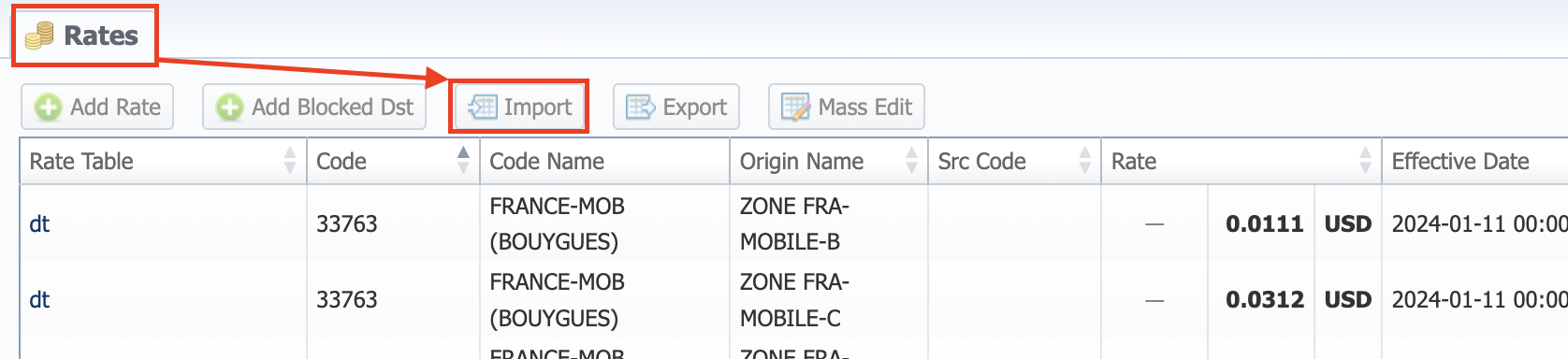
Import process
Step 1. Selecting a file and specifying additional parameters
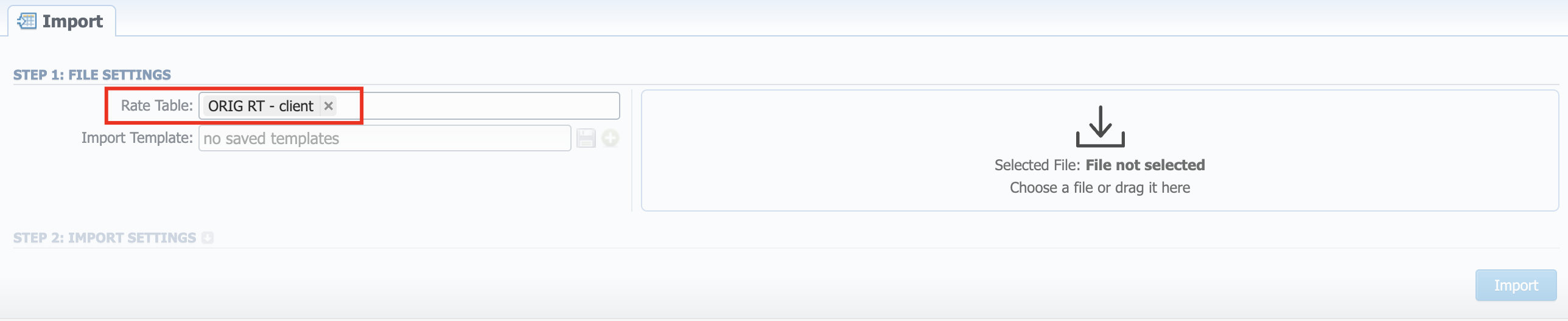
The first thing you need to do in the import configurations view is to select a rate table(s) (the import template will autocomplete if it exists). Then, drag-and-drop or upload an import file:
| Field | Description |
|---|---|
| Rate Table | This field will be autocompleted with the name of a rate table if the rates are filtered in the Rates section. If not applicable, select a target rate table(s) |
| Import Template | Select a target template for rates importing if available |
You can also save the import file settings as a template for further usage during import. To do so, click the green "Plus" button next to the Import Template field, specify the name, and click the Crete button.
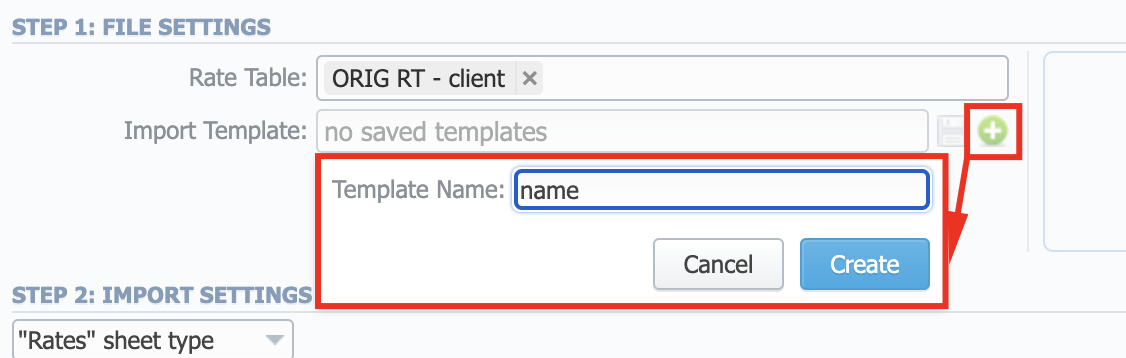
You can update the working template by clicking the blue button next to the Import Template field.
- It's not possible to import a file into the Rate Table with the Min Time and Interval = 0. These fields must have at least 1 second.
- While specifying the Effective Date and End Date, keep in mind that Timezone is UTC (+0000) by default.
- Please DO NOT import duplicates of the same Code in one import file.
Step 2. Import Settings
The system will recognize the file and display the first and last 5 rows of the first sheet (if it's an Excel file). You will need to select the start and end lines of an import table (marked green). The middle lines are not displayed, you can unfold them both ways by five lines by clicking the respective buttons. To switch from one sheet with rates to another, click on a respective tab: i.e., Sheet 1, Sheet 2, etc. (valid for Excel import files).
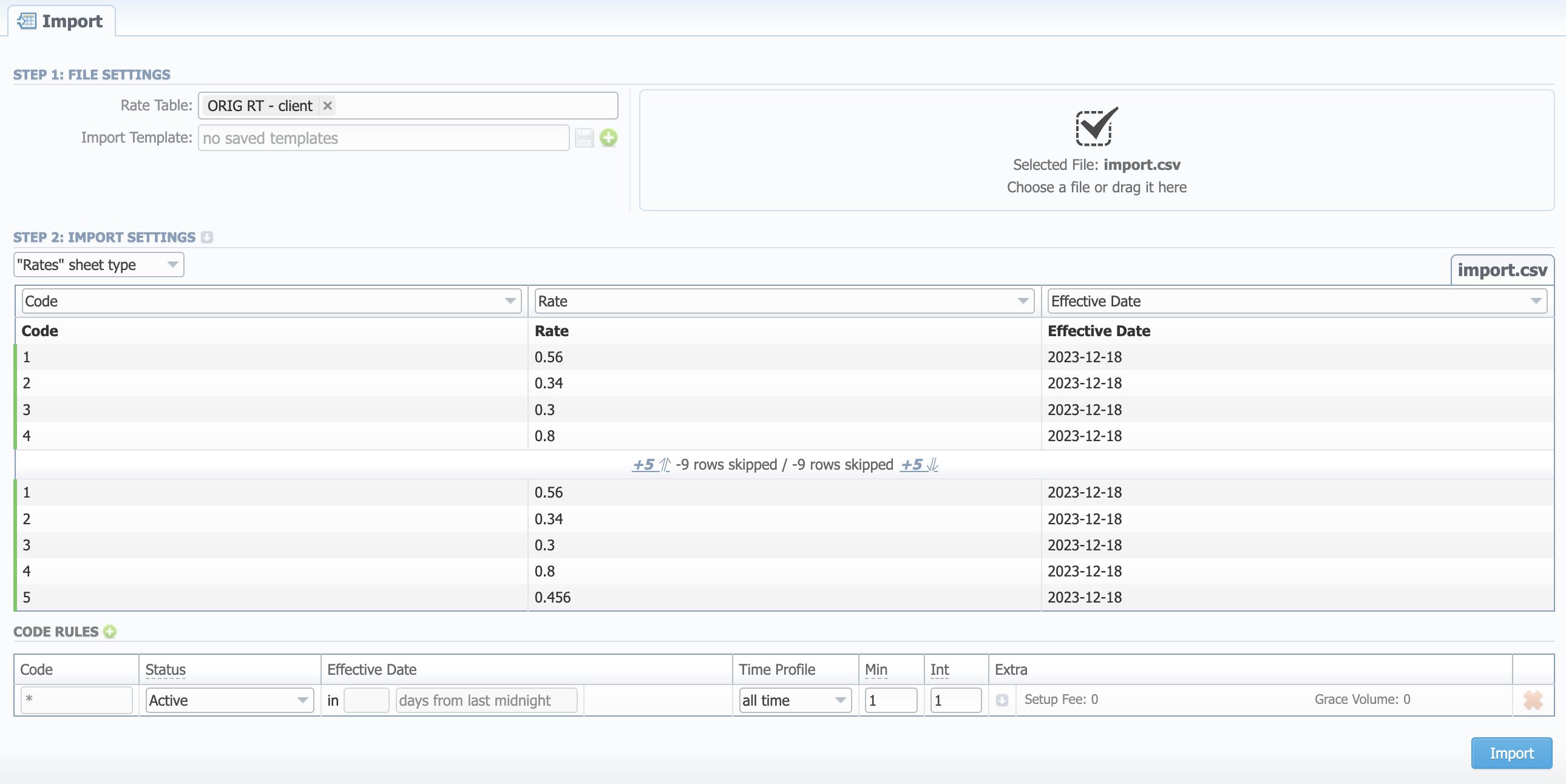
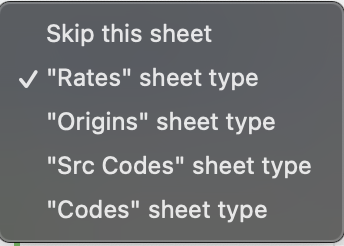
You can specify a type for each sheet of an imported Excel file. Each sheet type has its own list of columns. Currently, there are 4 sheet types and the ability to skip a sheet entirely:
| Type | Description |
|---|---|
| Rates | An equivalent to an importing page from earlier versions. At least 1 sheet must be of Rates type. Mandatory columns: Dst Code/Code Name (at least one), Rate, Effective Date (if not specified, the Effective Date from Code Rules will be applied) |
| Origins | Allows importing to the Origin Deck attached to the rate table. Required columns: Code and Origin Name (both must be specified) |
| Src Codes | Allows importing to the Code Deck attached to the rate table. Required columns: Src Code, Src Code Name, Src Country (optional), Src Country Code (optional) |
| Codes | Allows importing to the Code Deck attached to the rate table. Required columns: Code, Code Name, Country (optional), Country Code (optional) |
More about sheet type configuration Sheet Types guide.
Origins, Codes and Src Codes sheet types require the "Import all codes (update existing)" mode of Update Origin Deck/Update Code Deck from Advanced Settings respectively.
Advanced settings
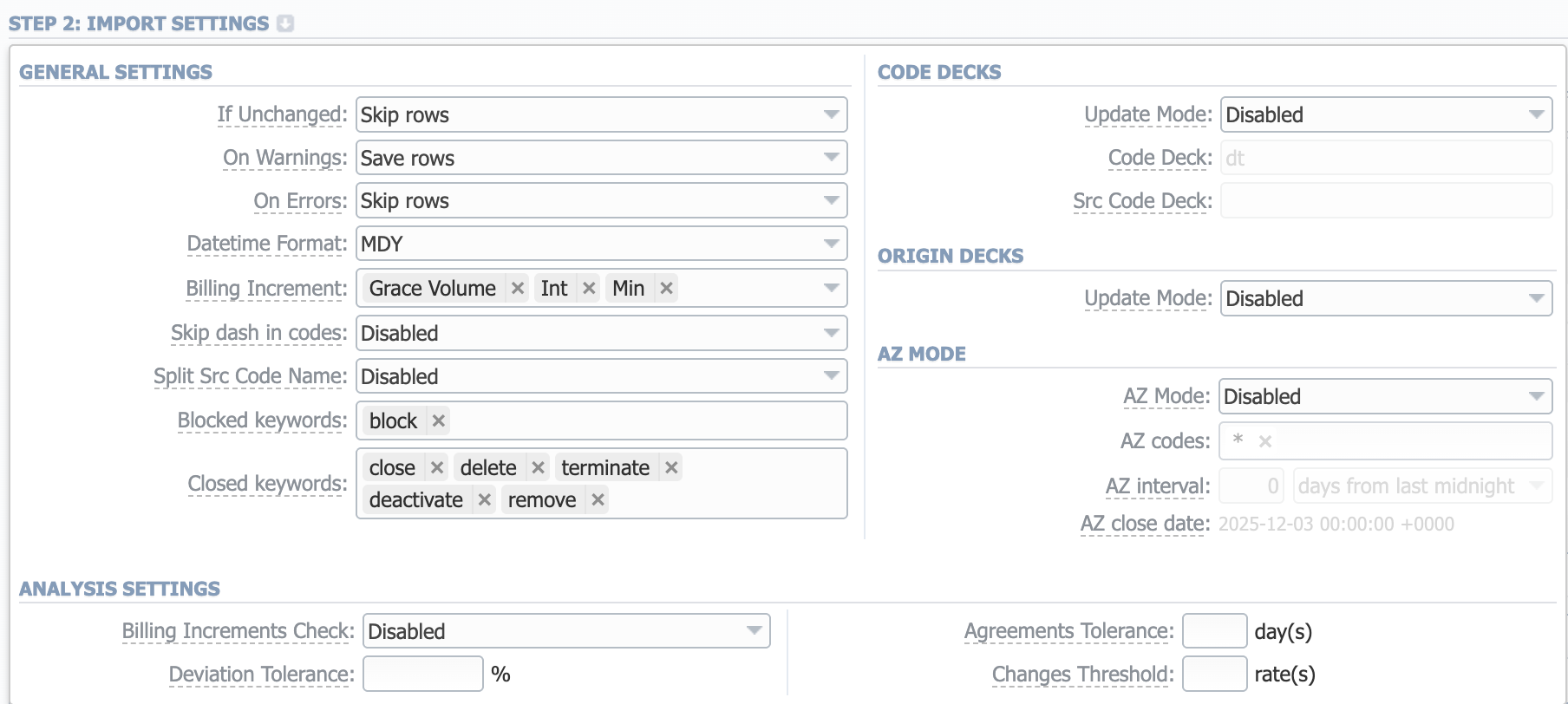
To open advanced configurations, click on a grey downwards arrow icon next to Step 2: Import Settings. Advanced settings contain the following fields:
General settings
| Field | Description |
|---|---|
| If Unchanged | Determines system behavior if it detects rates in the imported file with all the same settings as the ones already present in the Rate Table but Effective Date: - "Save rows" - "Skip rows" |
| On Warnings | Manages alerts from the Analysis Settings section. Available options: - "Save rows" - "Skip rows" - "Abort import" |
| On Errors | Determines billing behavior if inconsistency or error was found in the import file (data inconsistency, incorrect symbols, etc.): - "Import correct rows and show all found errors" — import error-free rows and display the list of errors, if any - "If errors are found, abort import and show all errors" — if any error is found, stop the import and display a list of errors |
| Datetime Format | Specify the datetime format of the imported rates. Auto-detection is supported for: DD-MM-YYYY, YYYY-MM-DD, MM/DD/YYYY, DD.MM.YYYY, YYYY/MM/DD, YYYYMMDD, YYYY-MM |
| Billing Increment | Defines the way events are billed and combines two (minimum volume and tariffication interval) or three parameters (minimum volume, tariffication interval, and grace volume). Indicate the order of parameters recognition in the Billing Increment column: - Min Volume/Interval - Interval/Min Volume - Min Volume/Interval/Grace Volume - Interval/Min Volume/Grace Volume. For example, if the Billing Increment column in your import file is 1, 5, and you selected Min Volume/Interval, the system will recognize 1 as Minimum Volume and 5 as a Tariffication Interval for a target rate |
| Skip dash in codes | Select whether a dash in codes must be skipped or not: - Enabled — codes written as 1201-1205 will be imported as a single 12011205 code - Disabled — 1201-1205 will be imported as separate 1201, 1202, 1203, 1204, 1205 codes |
| Split Src Code Name | Used only when source code names contain an underscore symbol: - Disabled — an Src Code Name such as "USAColumbia" will be preserved as-is after import - _By underscore — a "USAColumbia" _Code Name will be changed to "Columbia" after import |
| Blocked keywords | List words for the system to recognize blocked destinations. The prefilled value is "block". These words are recognized in the Rate and Changes columns |
| Closed keywords | List words for the system to recognize closed destinations. The prefilled values are "close", "delete", "terminate", "deactivate", and "remove". These words are recognized in the Rate and Changes columns |
Code Decks
| Field | Description |
|---|---|
| Update mode | Select how both Src and Dst code decks should be updated with new/existing code names from the current rates file: - Disabled — leave selected code decks unchanged - Import only not existing codes — code decks will be updated with codes and their names if they are missing - Import all codes (update existing) — code decks will be updated with code names taken from a file, overwriting existing ones - Import all codes (purge code deck first) — code decks are fully cleared and then all codes and code names are imported from a file. If Src Code and/or Dst Code sheet type is selected, you need to enable this feature |
| Code Deck | Dst Code Deck to be used for the Update Code Deck option. Settings here are only available if the import file contains Code Names in addition to Codes |
| Src Code Deck | Src Code Deck to be used for the Update Code Deck option. Settings here are only available if the import file contains Code Names in addition to Codes |
Origin decks
| Field | Description |
|---|---|
| Update mode | Enable updating of an Origin Deck with new/existing origins from the current rates file: - Disabled — leave origin deck unchanged - Import all origins (update existing) — origin deck will be updated with origins taken from a file, overwriting existing ones |
AZ Mode
| Field | Description |
|---|---|
| AZ Mode | A special mode that determines system behavior regarding active/future rates: - Disabled — leave active/future rates unchanged (selected by default) - Simple mode — active rates from a current Rate Table will be closed on the specified AZ close date if they aren't present in this import - Extended mode — all existing future rates will be marked as stashed; currently active rates (not present in this import) will be closed by the date specified below |
| AZ codes | Available if AZ Mode is active. Specify the exact code(s) AZ Mode is going to be applied to. By default, the field value is "*" (all codes) |
| AZ interval | Available if AZ Mode is active. Specify the period for AZ mode to close rates: - days from last midnight — the rates will be closed after the specified amount of days from the midnight of the import day - days from now — the rates will be closed after the specified amount of days from the import day - hours from XX:00 — the rates will be closed after the specified amount of hours from the start of an hour of the import timestamp - hours from now — the rates will be closed after the specified amount of hours from the import timestamp |
| AZ close date | Available if AZ Mode is active. Displays the time and date (with timezone) of rates closure based on the AZ interval parameters |
For a detailed explanation, check out our Knowledge Base article.
Analysis settings
| Field | Description |
|---|---|
| Billing Increments Check | Select whether billing increments checking is required during import: - Enabled — the system will raise an error if imported rates' billing increments differ from those already present in the Rate Table - Disabled |
| Deviation Tolerance, (%) | Define how much an imported rate can differ from an existing one in percent. If exceeded, the system will generate an alert for the manager |
| Agreements Tolerance, (days) | Define the number of days the system will take into account while analyzing the new import and the current agreement with the vendor. If the dates of an agreement and the import are closer than the specified amount, the system will generate an alert for the manager |
| Changes Threshold, (rates) | Define the number of changed rates that will serve as a threshold for the selected rate table. If exceeded, the system will generate an alert for the manager |
If you have rates with missing Rate value in the import file, the system will find the previous rate for the same destination and take this value from there (if the previous rate was not closed).
When you have rates with missing Effective Date value, the system will take it from the End Date value.
Code rules
For adding a new code rule, click on the plus icon. When you add a rule and set the value in the fields, it will overwrite the parameters specified in the respective columns of the file. If you leave fields empty, it will take the parameters from the file.
There is one default rule with "*" code that affects all the imported codes. The not specified columns of the imported rates will be filled in with the respective field values of this code rule. The list of code rules fields is as follows:

| Field | Description |
|---|---|
| Code | Indicate a destination code. For all codes, use "*" (asterisk) |
| Status | Indicate a status for the rates. By default, it will be "Active". Set the "Stashed" status if you want to double-check them later after import |
| Effective Date | Specify a start date of a rate: - days from last midnight — the rates will be active after the specified amount of days from the midnight of the import day - days from now — the rates will be active after the specified amount of days from the import day - hours from XX:00 — the rates will be active after the specified amount of hours from the start of an hour of the import timestamp - hours from now — the rates will be active after the specified amount of hours from the import timestamp |
| Time Profile | Indicate the time profile that will be used for a current rate, for example, "business time", "non-business time", "weekends", etc. |
| Min | Minimal time of the call that will be tariffed. For example, if the total call time was 20 seconds and Min is 30, the client will pay for 30 seconds of the call |
| Int | Tariffication interval. This parameter is used when Min Time expires |
| Extra | Additional parameters stored under the downwards arrow icon. See the table below for details |
Extra sub-fields:
| Field | Description |
|---|---|
| Tag | Specify a tag for respective rates. If not applicable, assign a @ tag as default |
| Grace Volume | A volume that will not be tariffed (i.e., it's free) |
| Setup Fee | An initial fee that is charged |
| Number Length | Specify the min and max number length |
| End Date | The final date after which the rate will expire |
| Notes | Additional information |
After specifying all additional parameters, click the Import button.
Step 3. Import Errors
Provided a non-critical error(s) occurred, you will see a table, where the exact sheet, line and error description are specified. In this case, you need to start the whole import procedure from the beginning.

In case numerous errors occurred while importing rates, the respective notification will be displayed:
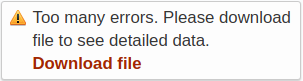
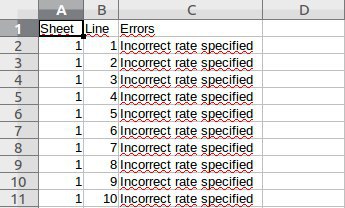
By clicking on Download file, a .csv file with the following columns will be downloaded:
| Column | Description |
|---|---|
| Sheet | Index number of the sheet where an error occurred |
| Line | Line of the sheet where an error occurred |
| Errors | Description of the error that occurred |
Confirming rates
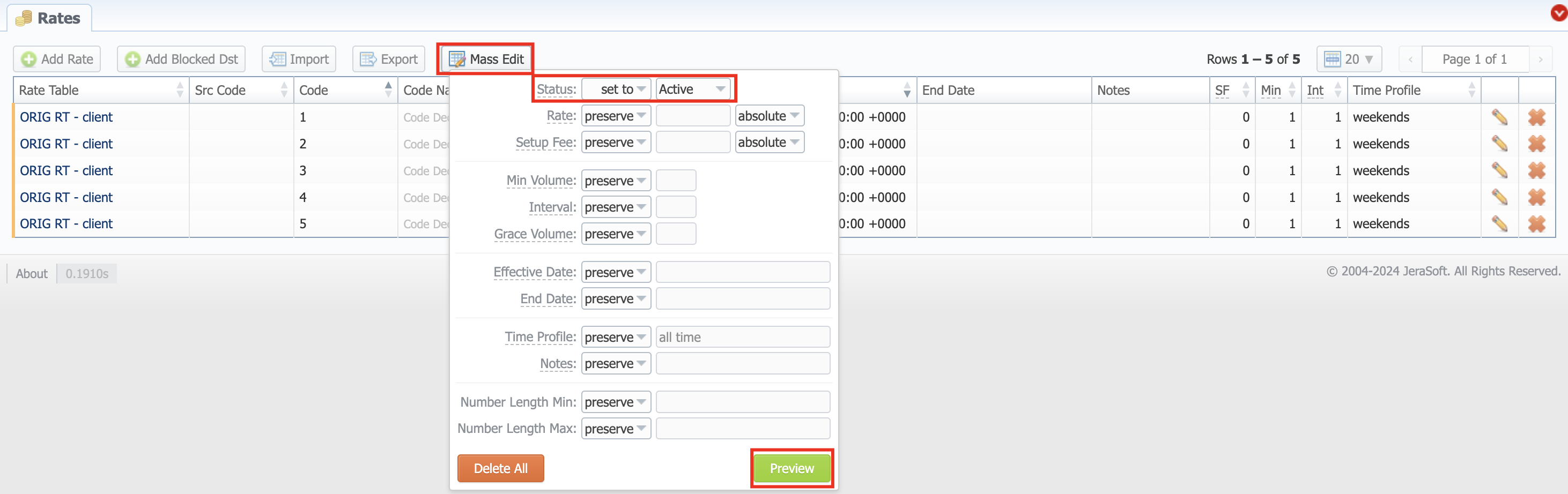
If you choose "Stash" Status of the rates during the Import process, you will be forwarded to the Rates section, where all imported rates will be displayed. Here you need to Mass Edit the rates' status from stashed to active.
Import history tab
The tab contains information about all executed imports to this rate table. You can access it in the Rate Tables → [Specific Rate Table] → Import History. It is presented in the form of a table with the following columns:

| Column | Description |
|---|---|
| Date | Time and date of import execution |
| Details | Login of a user who executed the import and the import file. By clicking the download icon, the file will be downloaded |
| Total Rows | Total amount of imported rows |
| Total Rates | Total amount of imported rates |
| New | Total amount of new rates |
| Increased | Total amount of increased rates |
| Decreased | Total amount of decreased rates |
| Unchanged | Total amount of unchanged rates |
| Closed | Total amount of closed destinations |
| Blocked | Total amount of blocked destinations |
| A-Z Closed | Number of rates, closed by A-Z import |
| A-Z Stashed | Number of rates, stashed by A-Z import |
| Status | Status of import procedure ("success"/"failed") |
 | When clicked on, deletes respective import data from the system |
Only the latest Import can be undone.
The imported rates are divided into the following types: Unchanged, Increased, Decreased, New. By clicking on the respective numbers of rates, you can see filtered rates by type in the Rates section.
Imported rates will be marked as Unchanged, Increased, or Decreased only if their Effective Date value (e.g., "04.25.2018") is higher than Effective Date of a current rate (e.g., "04.10.2018") and they don't have an End Date value. If the End Date value is present in a previous rate, the fresh one will be marked as New.